
You can now fill in Purpose and account code for the travel expense claim directly when you register an expense in the app. You get the right details in place from the start, you don't need to add them afterwards, and your manager can clearly see what the travel expense claim is for when it's time to approve it.
Purpose in place as soon as you register the expense
Previously, you couldn't fill in Purpose when you registered an expense. If your organisation requires Purpose, you had to add it to the travel expense claim later. Now you do it directly from the Added to travel expense claim card in the expense form. As before, the card shows which travel expense claim the expense is added to.
Fill in Purpose and account code in Edit travel expense claim
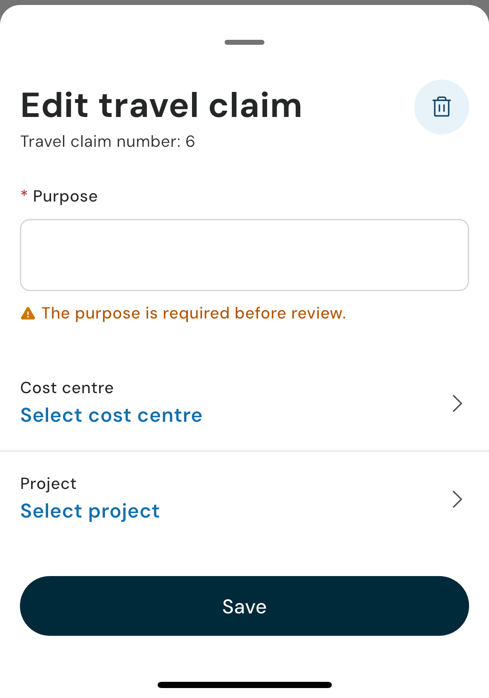
When you tap the Added to travel expense claim card, Edit travel expense claim opens. The travel expense claim's number is shown at the top. You can then fill in or change Purpose.
If your organisation shows account code dimensions in the header details of the travel expense claim, you see them below Purpose, for example Cost centre and Project. Tap Select cost centre or Select project and choose an account code according to the dimension's rule. Which dimensions you see depends on how your organisation has set up the system. Tap Save when you're done, and the details are saved to the travel expense claim.
The expense inherits the account code from the travel expense claim according to the same rules as in Flex HRM. Since the travel expense claim has its account code from the start, the expense can inherit it directly.
See right away what is required
If your organisation requires Purpose, the field is marked with * in Edit travel expense claim, like other mandatory fields. If Purpose is missing, you see the message "Purpose required before review."
Save now and fill in Purpose later
A missing Purpose doesn't stop you from saving the expense. This means you can register the expense right away and fill in Purpose later. Purpose is shown as missing until you have filled it in, and you need to fill it in before the travel expense claim can be sent for review.
Add the expense to an existing travel expense claim
If you add the expense to an open travel expense claim that already has Purpose and account code, the details are already filled in. Keep in mind that a change applies to the entire travel expense claim, including its other entries. If you select a different travel expense claim, you see Purpose and account code for the claim you selected.
When the details are read-only
You can change Purpose and account code when the travel expense claim has the status To report or Rejected in the app, which means the status Preliminary in Flex HRM. If it has any other status, the details are read-only.
Right from the start
With Purpose and account code in place as soon as you register the expense, the travel expense claim is complete from the start. You don't need to go back and add details, and your manager gets a clear picture of what the travel expense claim is for.